
Upgrading a Cluster#
When an update is available to one of the Xsolla Backend engine services you can apply the update with one of two
methods. The first method is to edit the deployment directly and set the desired version. The second method is to use
helm upgrade to modify the installation.
Quickstart#
Setup via powershell script
Your service’s git repo should have version++
Your helm_charts repo should version++ within
values.yamlUpgrade via
Prerequisites#
via script:#
Have everything installed for you via this powershell script
via manual setup:#
The following tools are required to follow this guide:
Editing the Deployment#
The simplest way to upgrade an Xsolla Backend engine service is to edit the deployment directly. This is often useful when only upgrading a single service at a time.
In a terminal run the following kubectl command:
kubectl -n <namespace> edit deploy <service-name>
For our example we’ll upgrade the server-instance-services system:
kubectl -n axr-demo-v1 edit deploy server-instance-services
In the editor look for the line that starts with image:. At the end will be a version number like v1.0.0.
Change it to the desired new version you want to deploy and save:
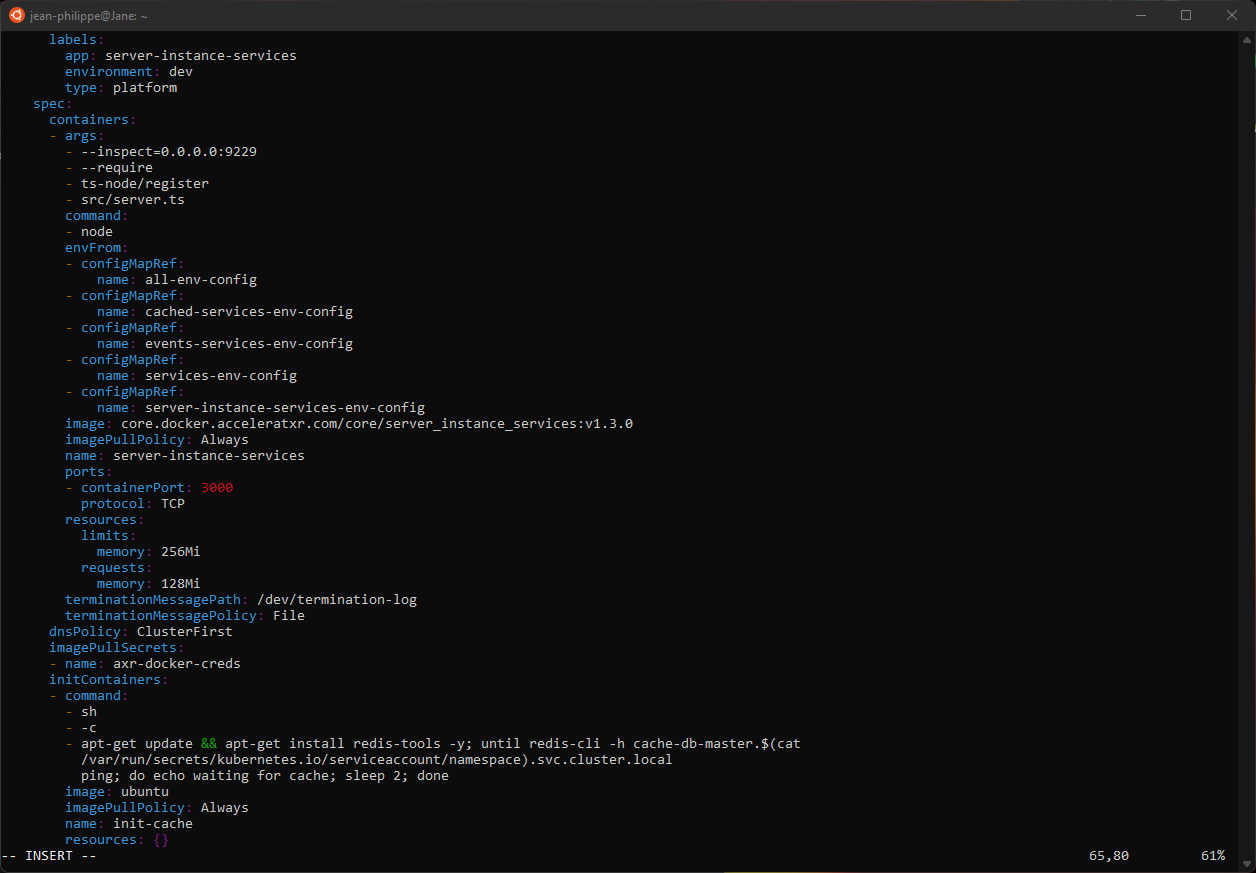
Once you have edited the deployment you can monitor the pods as the upgrade happens. The system will first create a new pod with new version, leaving the original running. Once the new pod is running:

Once the new pod is verified as working the system will shut down the old pod. This ensures no gap in service during the upgrade process:

Using Helm Upgrade#
The recommended method to update any Xsolla Backend engine service is to use helm upgrade.
The primary benefit of this approach is that it allows you to better track which versions of
the system have been deployed. This helps if the cluster ever needs to be rebuilt.
First open the values.yaml file that was used to install the Xsolla Backend cluster in the first place.
Look for the section for the service in question and change the version value to the one desired.
Then save the file.
1server_instance_services:
2  enabled: true
3  version: v1.3.0
4  config:
5    # Override any environment variables here (e.g. admin_user__name)
Upgrade via Script#
Have everything upgraded for you via this powershell script (same as above).
Upgrade via Manually Setup#
Now run the helm upgrade command with these example values:
1helm upgrade axr-demo-v1 -f values.yaml . \
2    --namespace axr-demo-v1
When the upgrade is complete you’ll get a similar output as you did when you first installed the cluster.
The system will first create a new pod with new version, leaving the original running. Once the new pod is running:
Once the new pod is verified as working the system will shut down the old pod. This ensures no gap in service during the upgrade process: