
Database Access#
Prerequisites#
The following tools are required to follow this guide.
Overview#
Xsolla Backend allows for direct access to any of the underlying databases used by the platform. Each database is run as a local set of pods within the kubernetes namespace that the cluster was deployed to.
Xsolla Backend currently deploys three different database technologies across five different instances.
Type |
Instance Name(s) |
Description |
|---|---|---|
MongoDB |
|
Long term and permanent storage for service data of various systems including accounts. |
PostgreSQL |
|
Long term and permanent storage for service data of various systems including economy. |
Redis |
|
Used for 2nd level caching of HTTP requests and search queries. |
Redis |
|
Used to communicate system events and broadcast telemetry data to all Xsolla Backend engine services. |
Redis |
|
Used for performance sensitive systems such as matchmaking and leaderboards. |
Connecting to MongoDB#
An Xsolla Backend cluster’s MongoDB database can be accessed directly using the kubectl tool and the
port-forward command.
First you’ll need to identify the exact name of the database pod. To do this we need to list all pods in the cluster’s namespace:
kubectl -n axr-demo-v1 get pods
Look for the pod whose name starts with mongodb as shown below:

The next step is to set up a port forwarding tunnel to the pod in order to access the server from a local machine.
In our example the name of the mongodb pod is mongodb-67b485dc9d-64c58:
kubectl -n axr-demo-v1 port-forward mongodb-67b485dc9d-64c58 27017:27017
This command will start a port forwarding tunnel to the mongodb pod by forwarding the pod’s port 27017 to the local port 27017:
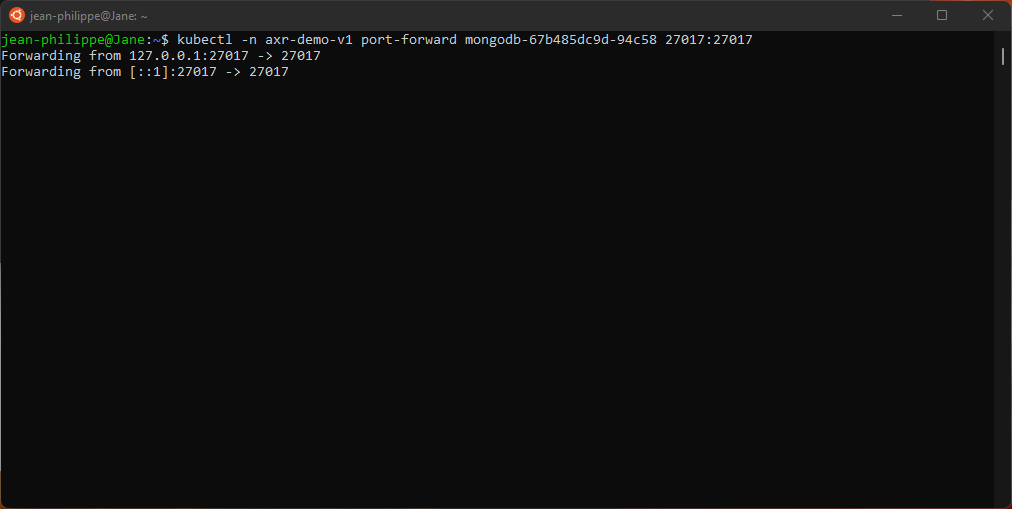
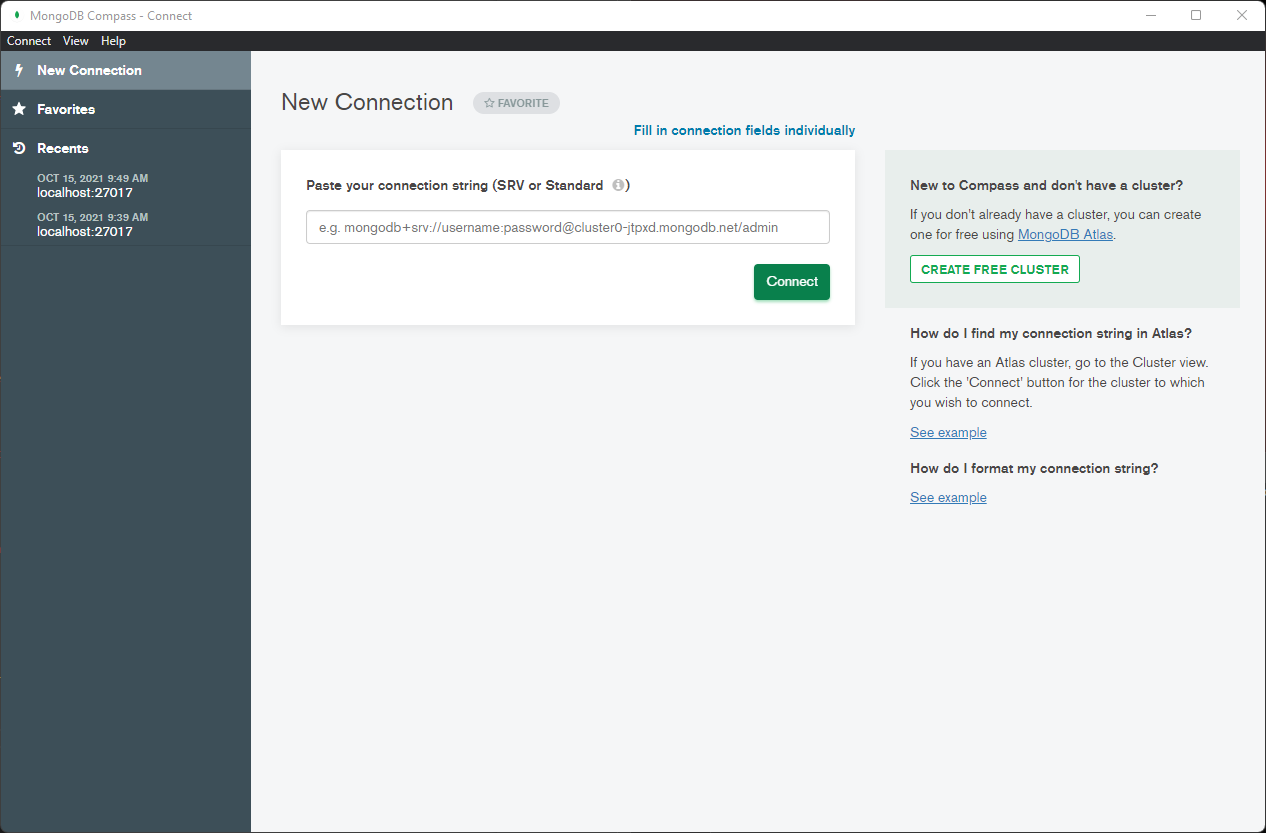
Now the database can be accessed as if the server is running locally. Try connecting to it with MongoDB Compass:
When you’re done you can stop the port forward operation by hitting Ctrl+C in the terminal window.