
Unreal Quickstart#
See the Unreal OSS Quickstart video, or continue below.
About#
This tutorial will teach you how to:
Clone lyrastartergame
Initialize git submodules
Setup Unreal plugins via PowerShell script
Generate project files
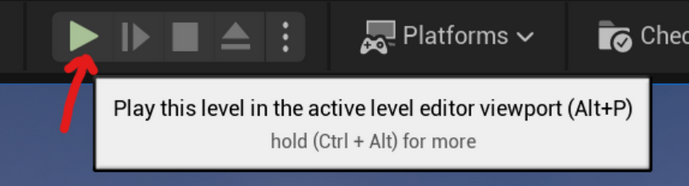
Open an arbitrary map in Unreal → Play
Also see: The repo README
Prerequisites#
PowerShell
Epic Games Account
Unreal Engine 5.4
Unreal-supported IDE of choice:
IDE such as VS2022 Community (used below) or JetBrains Rider
With Unreal Engine 5 SDK required components
With C++ and Windows SDKs
Git: GitLab access token from our private (but source-available) repository:
Navigate to the top-left profile icon
Select Preferences
Go to Access Tokens → Add new token
Getting Started#
Clone and sync the lyrastartergame project repo:
git clone https://source.goxbe.io/Core/samples/lyrastartergame.git
Initialize and update git submodules for the given repository to clone XsollaBackend into Plugins/XsollaBackend:
git submodule init
git submodule update
cd .\Plugins\XsollaBackend\
Run the setup script with PowerShell:
./setup.ps1
Generate IDE Project Files#
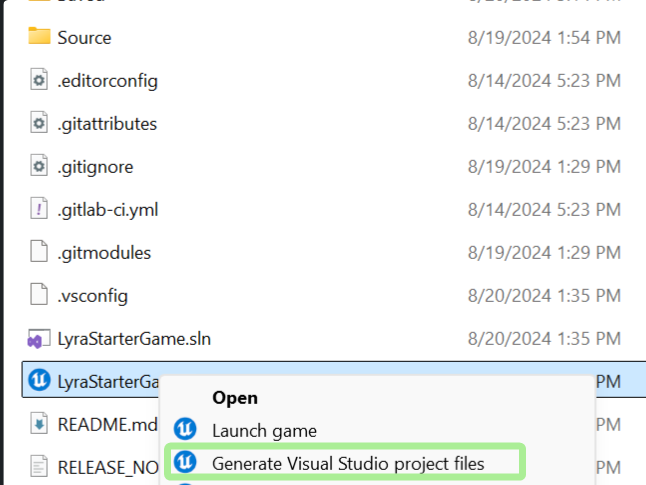
Right-click LyraStarterGame.uproject → Generate Visual Studio Project Files:
Configure IDE Build Target#
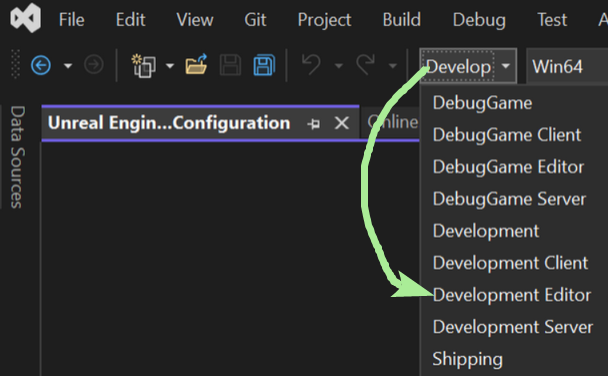
Open your IDE and build the solution in the Development Editor configuration (VS2022):
Change the top menu dropdown build target (to the left of
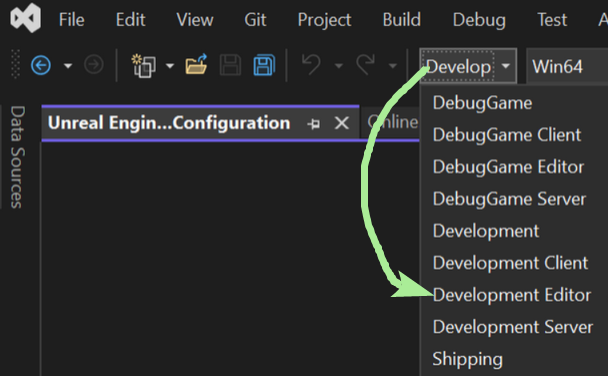
Win64) toDevelopment EditorFrom the top menu: Build → Rebuild Solution
Open the Unreal Editor#
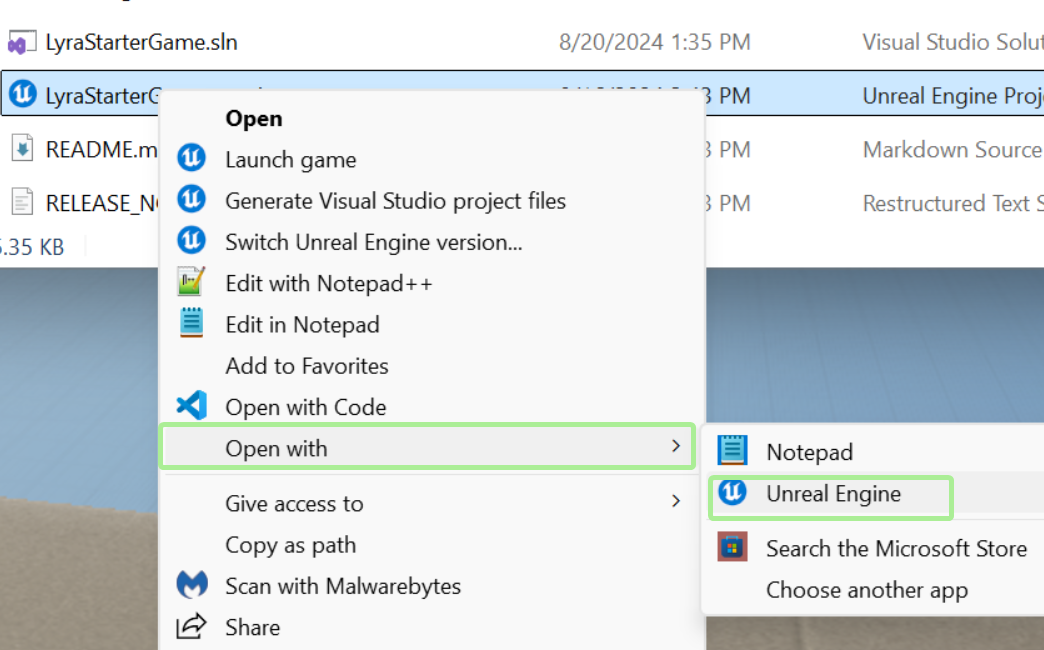
Using the Windows Explorer shell menu’s Open with… option on the .uproject file:
Open a Level#
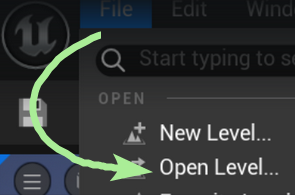
File → Open level
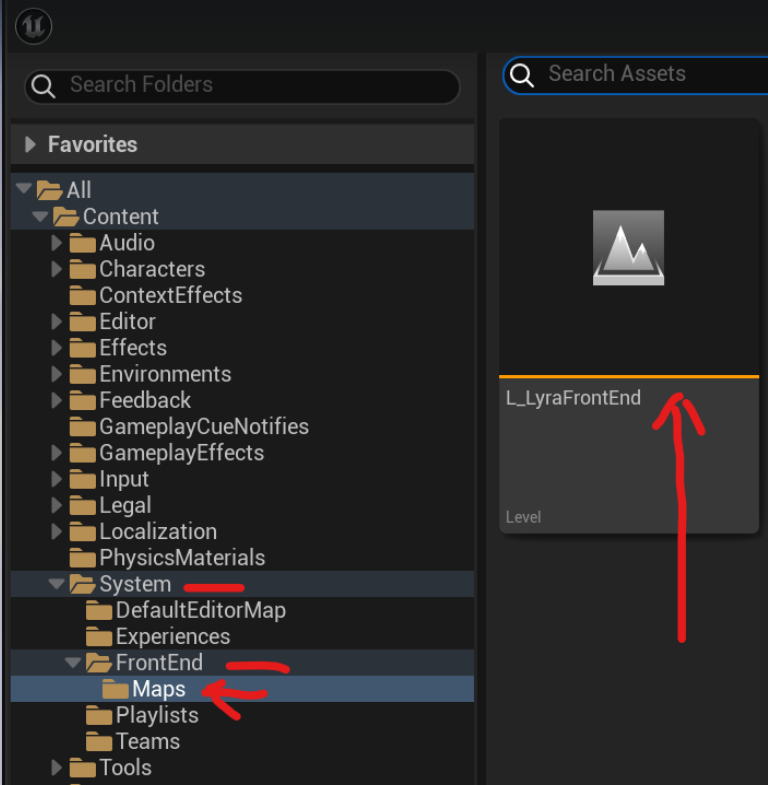
Open the map:
level/system/frontend/maps/L_LyraFrontEndPlay
Done#
Observe a successful login through the Unreal Engine log console.
Looking to dive deeper? See the :
Unreal Lyra Game Full Sample